

 AdonisJS
Open FetchskiAI Usage
- In the toolbar, choose FetchskiAI → FetchskiAI Usage.
- Or open the command palette (⌘K, or Ctrl+K on Windows) and choose FetchskiAI Usage, or press T then O.
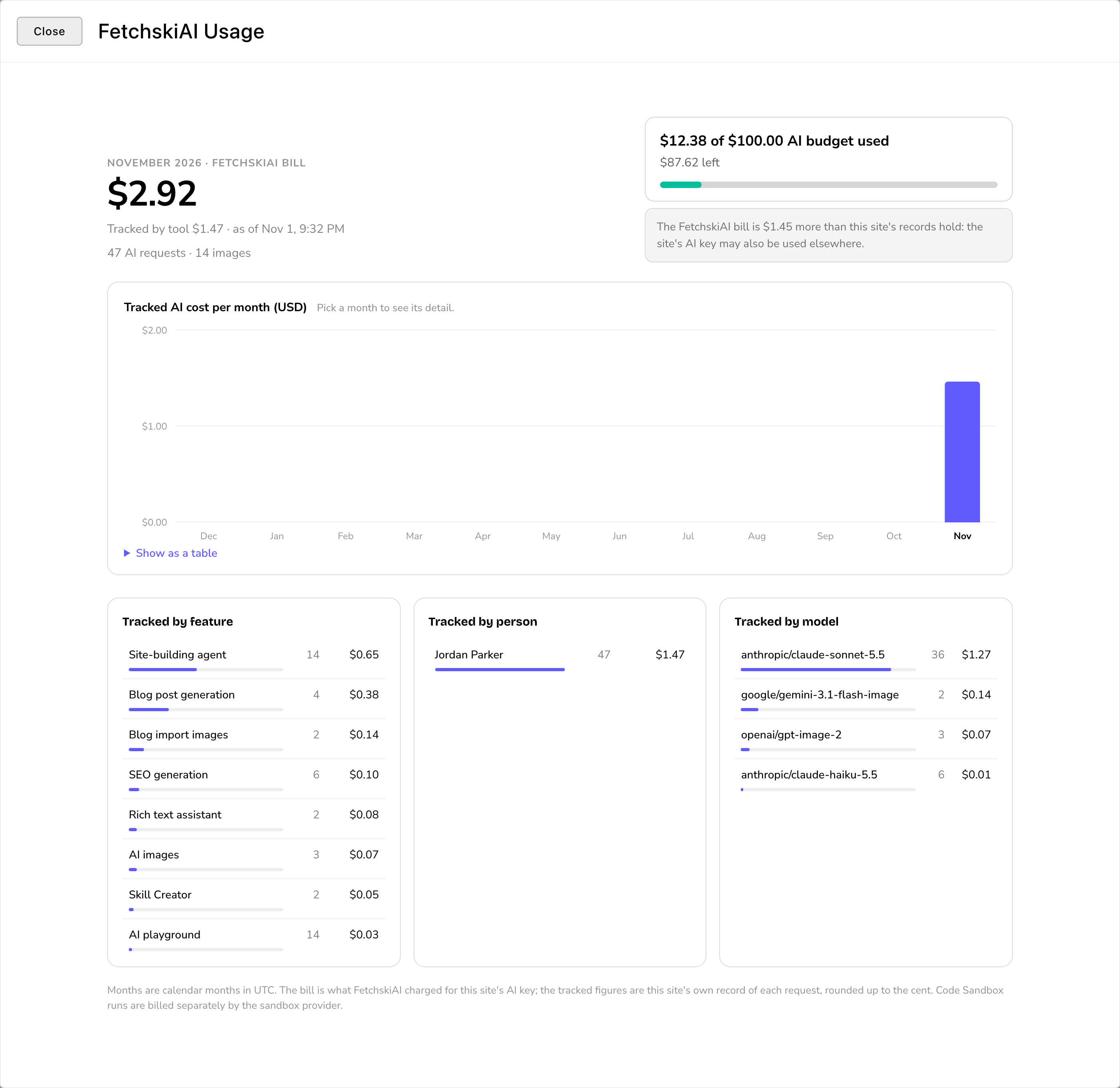
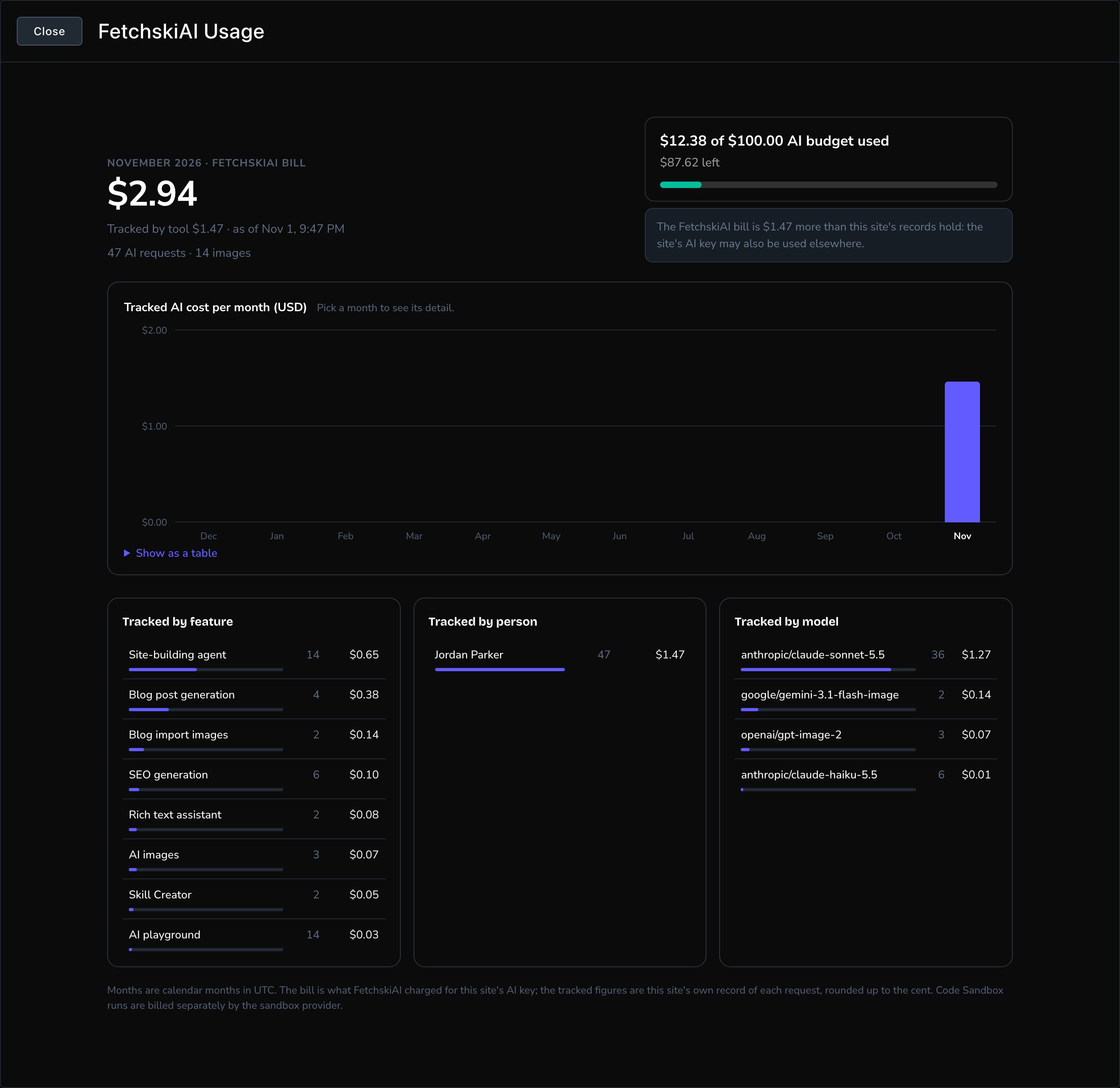
What AI cost this month, and over the last year.
This month at a glance
The top of the window sums up the month you chose.- FetchskiAI bill: what FetchskiAI actually charged for your site that month. Attract fetches this amount when you open the window and after each AI request. Until it has, the headline shows the total tracked by this site instead, and a note says the bill will show once it’s been read. To check again, close the window and open it once more.
- Tracked by tool: your site’s own record of each request, added up. The total is rounded up to the next cent, so 3 requests costing $0.004 each show as $0.02. Beside it: how many AI requests and images, and how many failed or stopped.
- The budget card: how much of your AI budget is used, what’s left and when it resets.
Month by month
Tracked AI cost per month (USD) shows the last 12 months as bars. Choose a bar to see that month’s details. To read the numbers instead, open Show as a table, with Month, Requests, Tracked and FetchskiAI bill.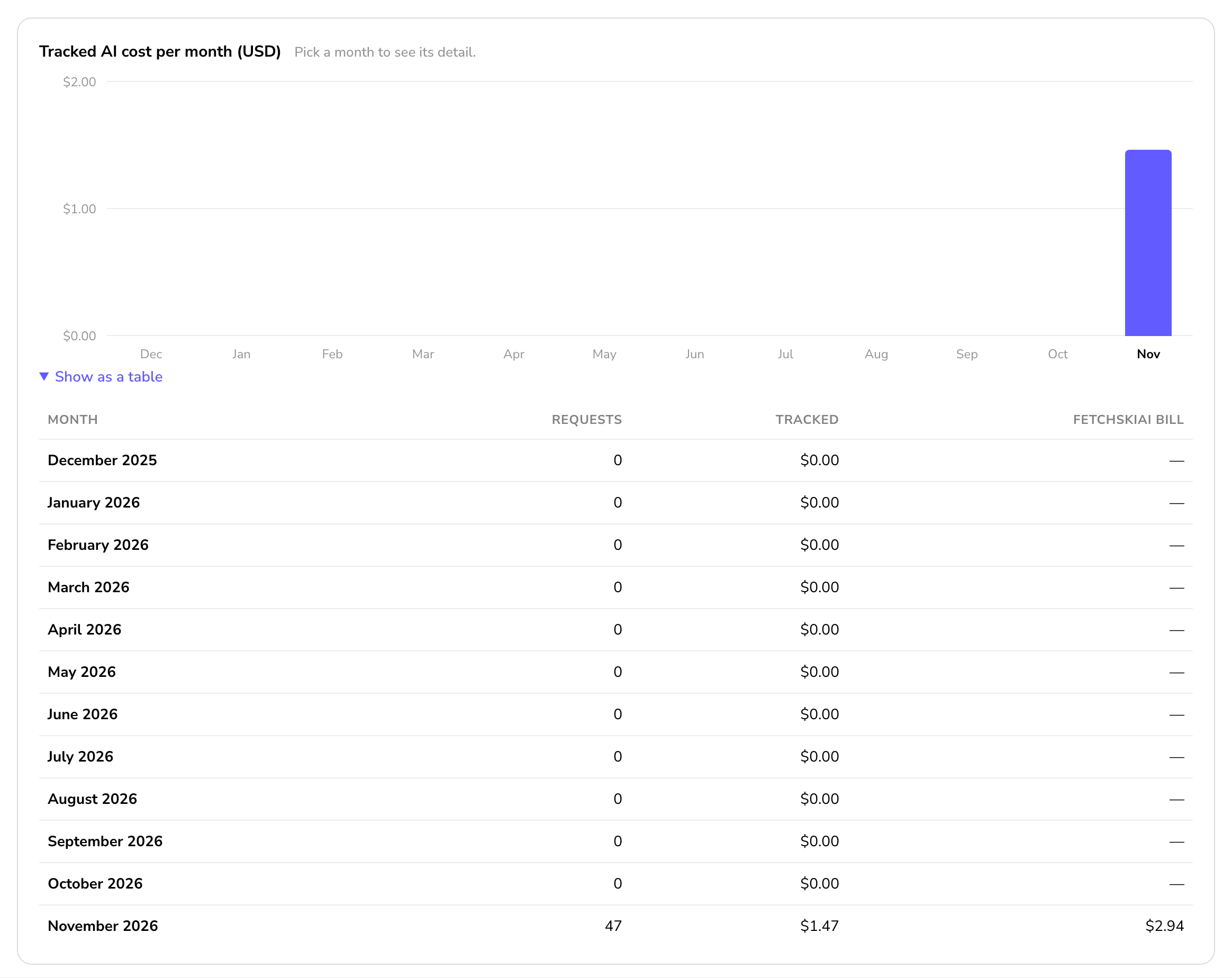
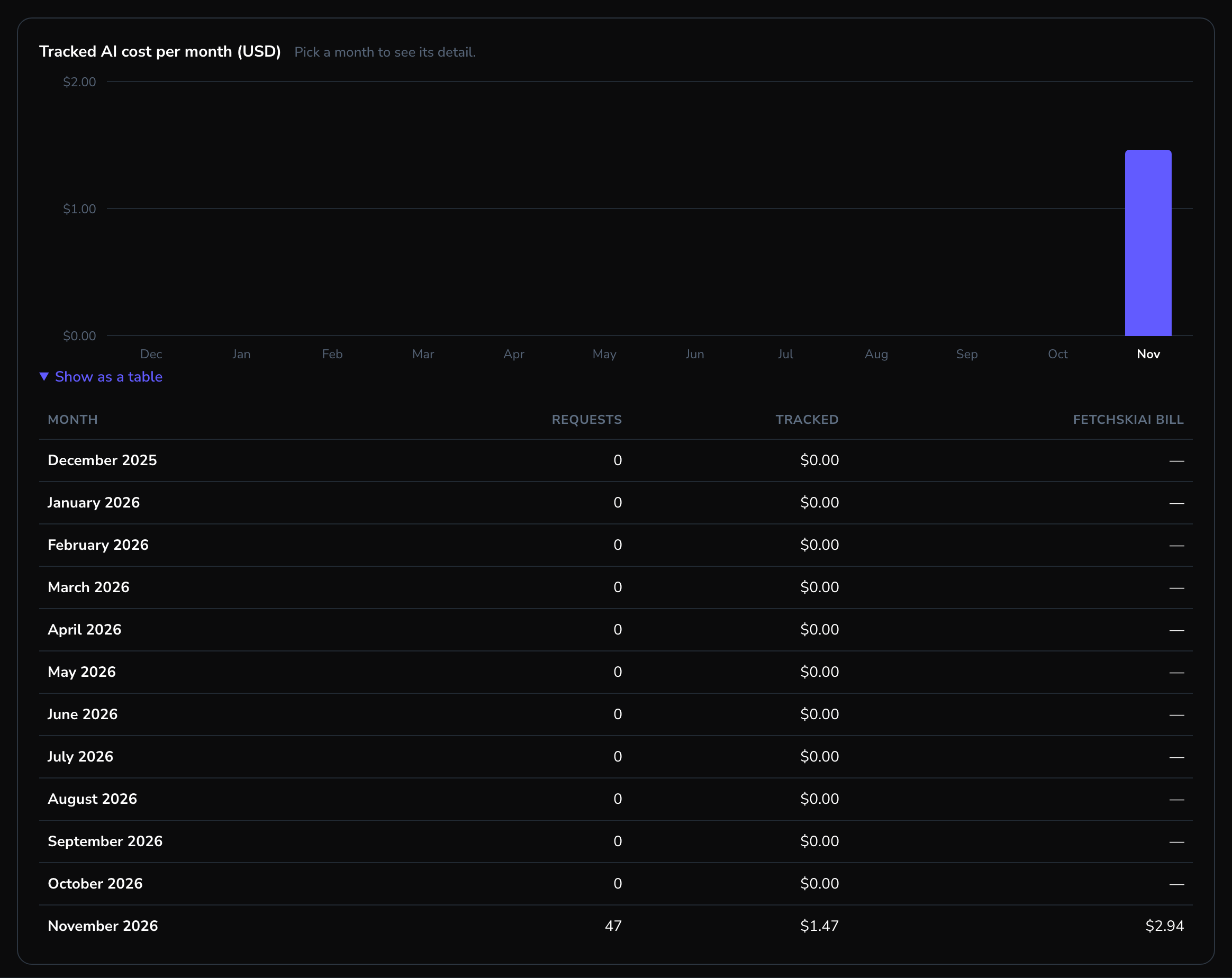
Pick a month to see where the money went.
Where it went
Below the chart, the month is broken down 3 ways, each with Requests and Cost:- Tracked by feature: the Agent, writing help, images, blog posts and so on.
- Tracked by person: who made the requests.
- Tracked by model: which AI models answered. A model is the AI system that writes an answer, and each has its own price.
The budget meter
Fetchski can set a spending limit on your site’s AI. When there’s a limit, a meter shows how much of it is used, in:- writing help in rich text, the image window, the blog post generator and the FetchskiAI Agent panel
- the AI Playground, FetchskiAI Usage, and the FetchskiAI card in Connections (as FetchskiAI budget)
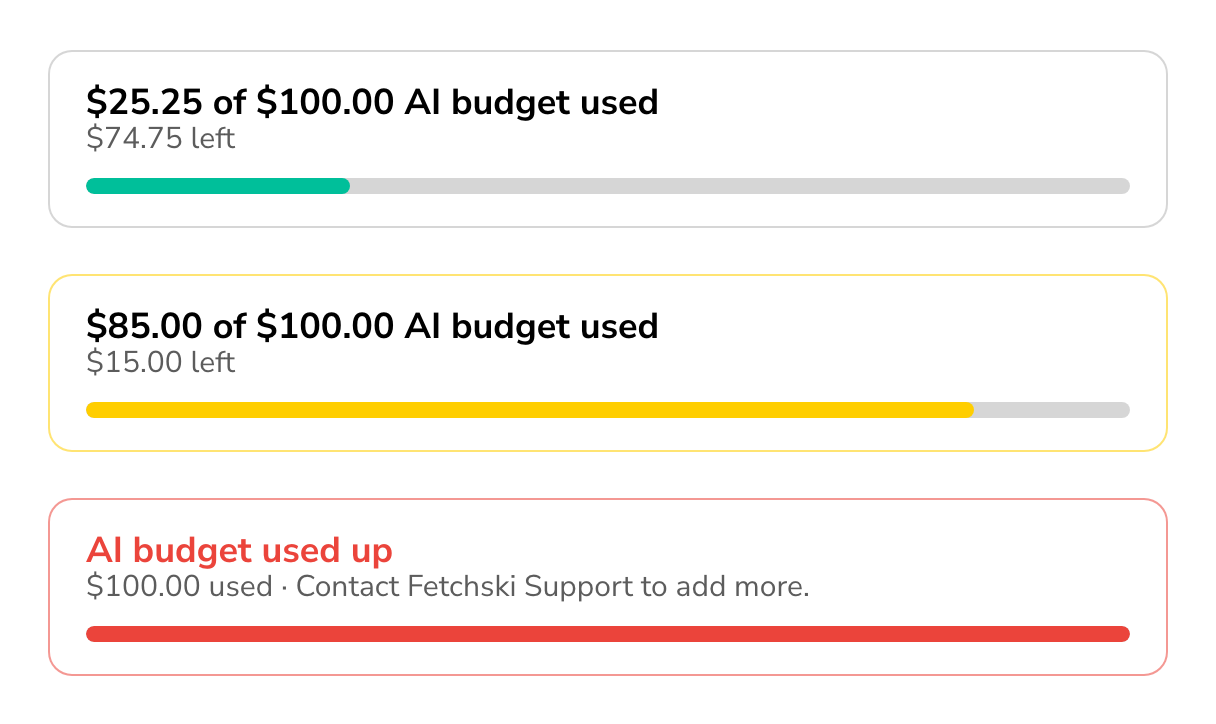
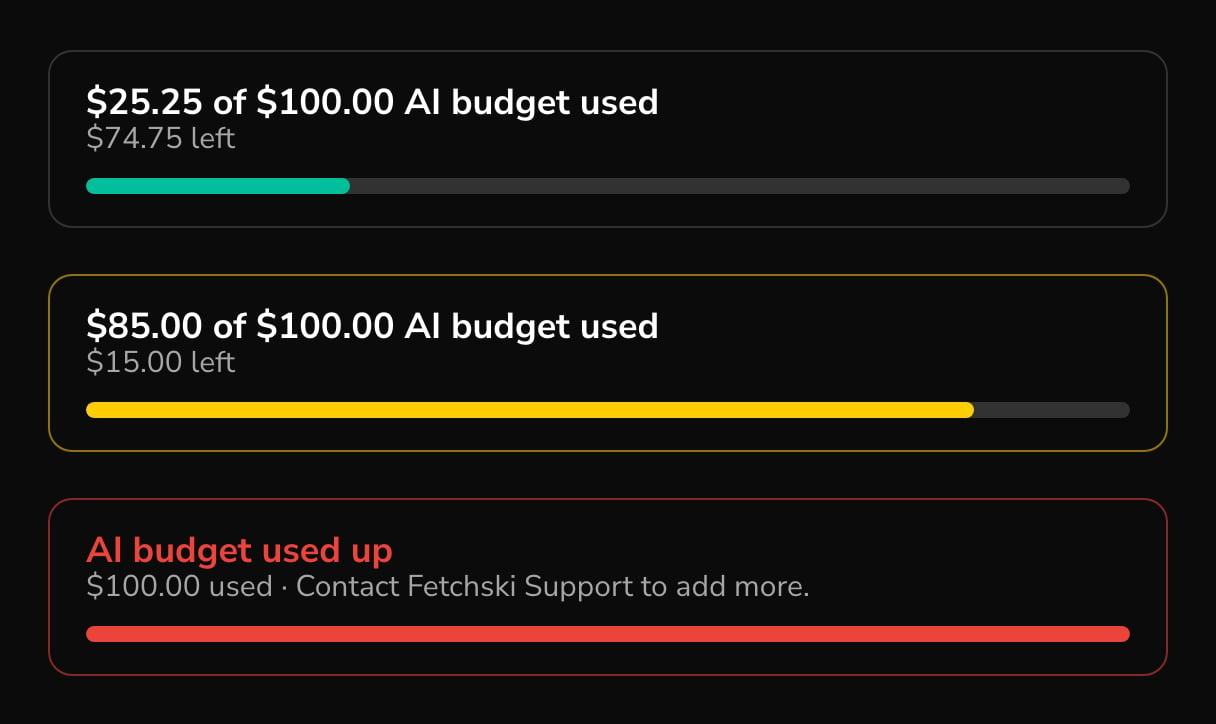
The meter turns amber when the budget runs low, and red when it's used up.
- Admins and Owners see dollars, such as “$25.25 of $100.00 AI budget used this month”, plus what’s left and the reset date.
- Editors see the share used, such as “25% of the AI budget used this month”.
- From 80% used, the meter turns amber. When it’s used up, it turns red and reads AI budget used up · “Contact Fetchski Support to add more.”
When the budget runs out
Every AI feature stops until there’s more budget. Instead of an answer, you see: “This site’s FetchskiAI budget is used up. Contact Fetchski Support to add more.” Nothing you can change in the CMS fixes this. Contact Fetchski Support to add more, or wait for the budget to reset.Good to know
- Months follow UTC. UTC (Coordinated Universal Time) is the time zone the reports use. A month starts at midnight UTC, which is 4 or 5 p.m. the day before in Portland, Oregon. So a request made at 6 p.m. Portland time on October 31 counts toward November.
- The Agent has its own cap too. Admins and Owners can set Spending cap per conversation (US dollars) in Agent Setup. It stops one runaway conversation, while the budget covers the whole site.
- See each request in detail. For the tokens and cost of a single text request, open Recordings. Tokens are the small pieces of text the AI reads and writes. Recordings keep only recent requests made while recording is on, and don’t include image generation.
Related
Recordings
look back at recent text requests.
FetchskiAI settings
turn AI on and choose models.
Connections
the FetchskiAI card and your budget.
What each role can do
who sees usage and costs.